
Before you export
Sign in to Zen Planner with permission to run reports and exports. Keep the old system active while you prepare. Export original files into a private folder, date them, and work on copies. Never put card numbers into a spreadsheet.
The report paths below follow Gymdesk’s published Zen Planner export instructions, checked November 1, 2026. Your permissions and interface may differ. Confirm the available columns in your own account before changing billing.
Which Zen Planner reports to export
- Members: open New Report → All Students → Export. Include a stable student ID, names, email and phone where available.
- Memberships: open New Report → Memberships. Include membership name, payment amount, status and next payment date. Check the Membership start date field; the published instructions call it Member State Date.
- Attendance: open New Report → Attendance and save it for your records.
- Leads: open New Report → People. Keep prospects identifiable separately from active members.
- Payment history: open New Report → Payments. Keep transaction IDs, dates, amounts and member IDs where available.
- Save your weekly schedule and class-pack balances separately if they are missing from those reports. Download signed waiver records before cancelling.
Map the CSV fields before importing
| CSV column | CornerDesk field | Check |
|---|---|---|
| Student ID / Member ID | External ID | Keep it stable for duplicate checks and billing reconciliation. |
| First Name, Last Name | Member name | Review names that contain commas or accents. |
| Email, Phone | Contact details | Check family members who share an email address. |
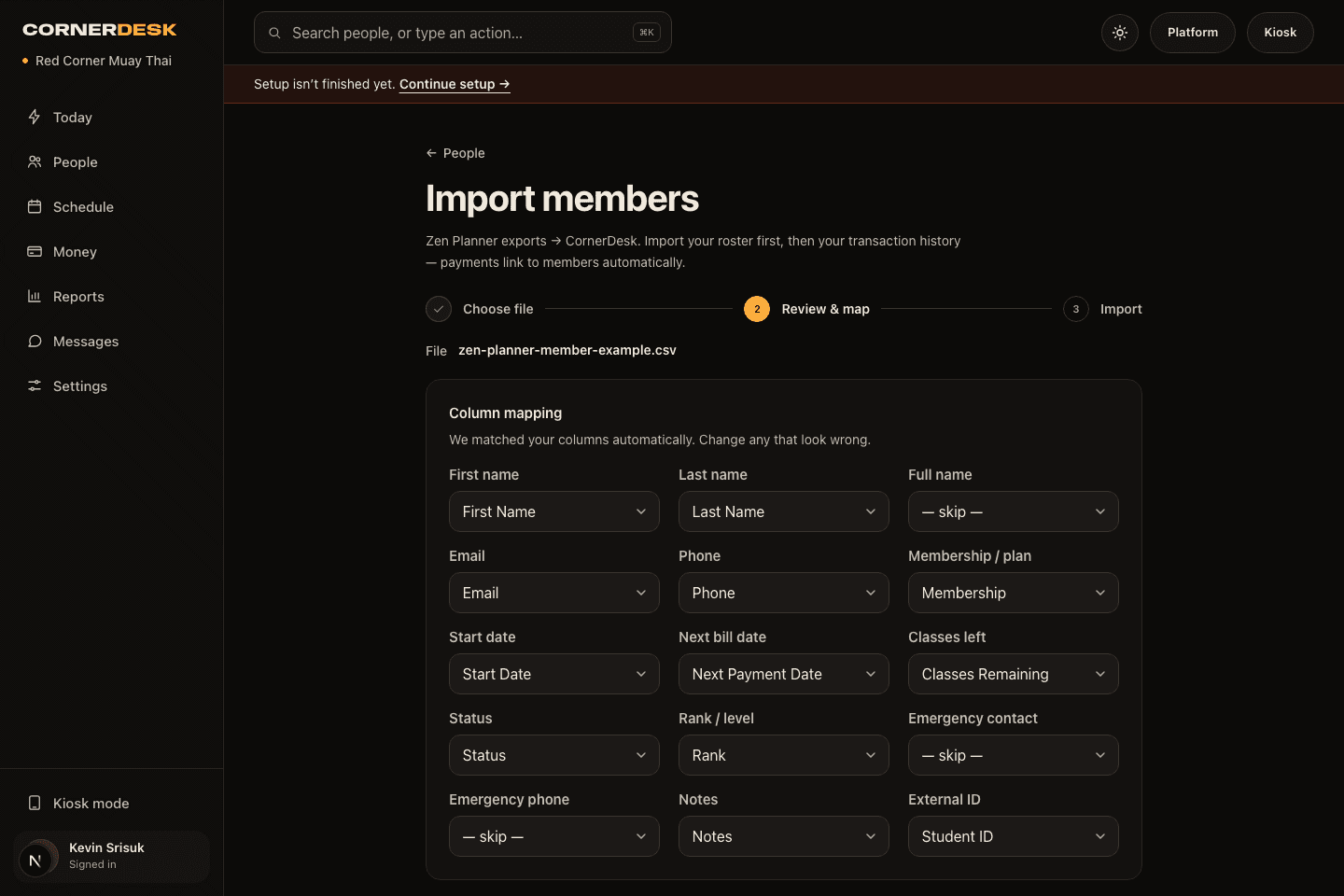
| Membership | Plan | Map each old plan to a plan you create; verify price and interval. |
| Next Payment Date | Next bill date | Use YYYY-MM-DD and verify each member’s date. |
| Classes Remaining | Class credits | Use class counts, not a dollar account credit. |
| Rank, Notes | Rank and notes | Check the preview before saving. |
CornerDesk detects the header row and common column names, then lets you correct the mapping. Exported plan names do not prove that billing amounts match: check your plan setup and preview. Duplicate warnings are a reason to review a row, not to delete a family member.
Download a fictional member CSV and field mapping worksheet. These are CornerDesk examples, not actual Zen Planner exports or customer data.
Switch billing without charging twice
- Create and verify plans, prices, billing intervals and next bill dates in CornerDesk.
- Ask the existing processor about transferring saved cards directly to your gym’s Stripe account. Availability and timing depend on the processor; a CSV is not a card transfer.
- Keep one billing owner per member. Confirm that old autopay is off before enabling the first new charge.
- Send members a short explanation before any new payment or waiver link. State what changes and what they need to do.
- Reconcile the first billing run member by member. Confirm each person was charged once, at the correct amount and date, before cancelling the old service.
Download the migration checklist. The full switching guide covers saved cards, waiver records, overlap and cutover. Check your existing contract’s notice period.
Have CornerDesk handle the import
Send your exports through CornerDesk’s private import process and review the preview with us. The free switch covers members, plans, balances, ranks, notes, payment history and schedule setup where source records are available. No public upload or spreadsheet with card details is needed.
Book a free Zen Planner switch, or compare subscription and payment costs. CornerDesk is $99 CAD/month, with the first 30 days free; card-processing and service fees are separate.